
Enterprise Recon 2.14.0
Target Details
This section covers the following:
Overview
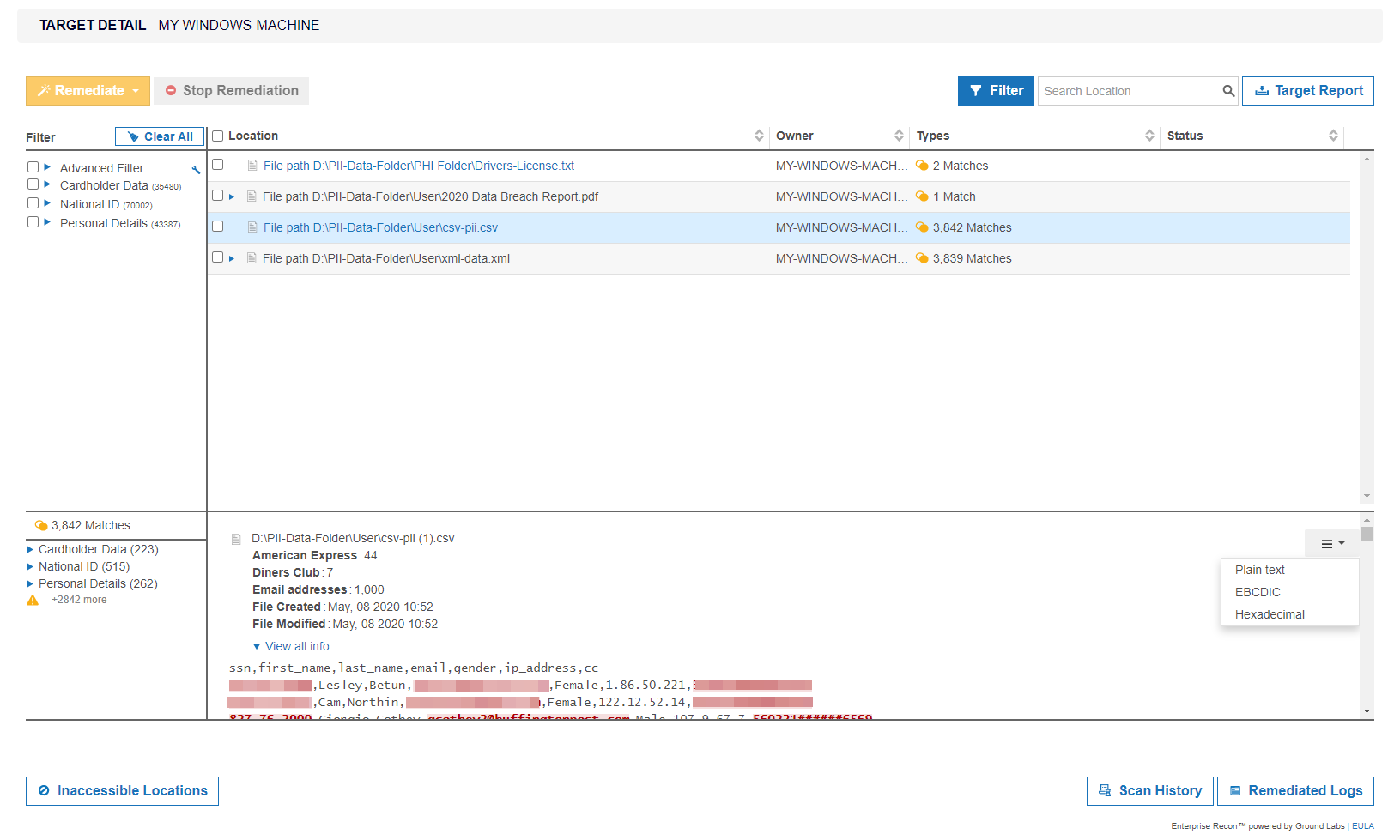
The Target Details page provides users a one-stop
view of a Target, allowing users to easily review match results, remediate
confirmed matches, and export scan reports within a single interface.
Navigation
Users can access the Target Details page by clicking on a Target or Target location in the Targets page.
Users can navigate to the following pages from the Target Details page:
Components
The following table is a list of components found in the Target Details page:
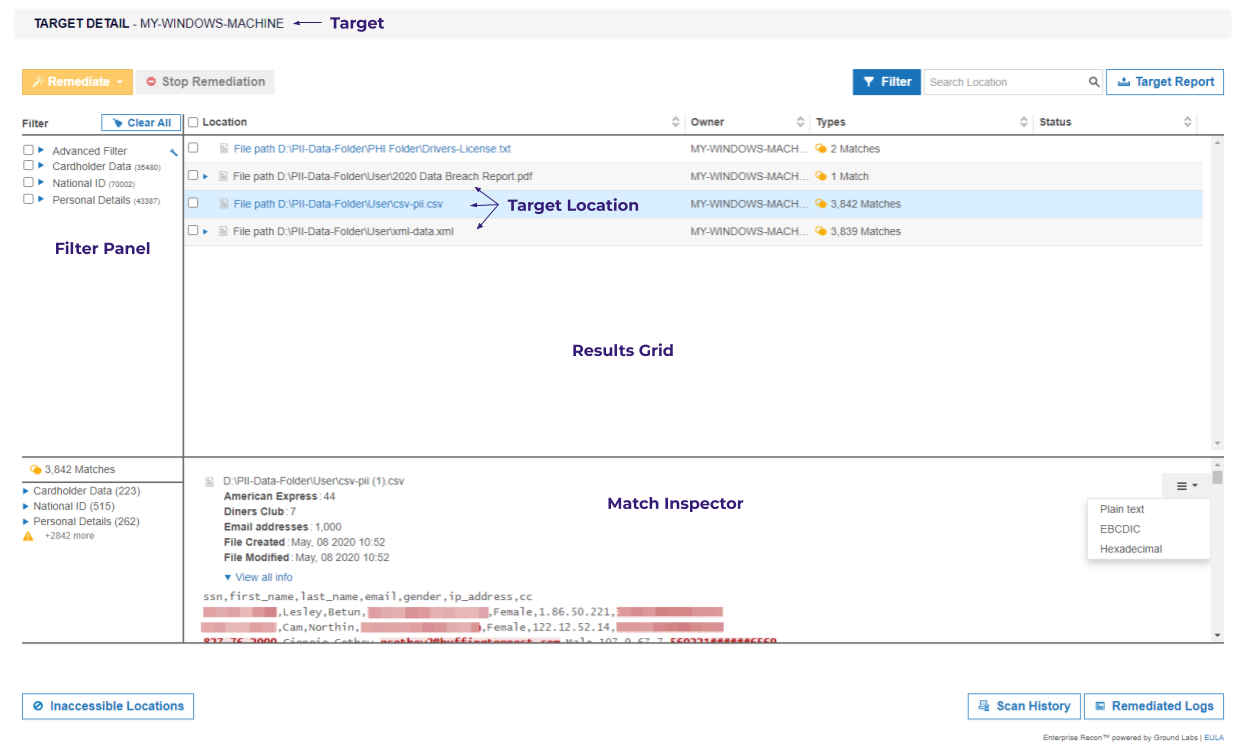
| Component | Description |
|---|---|
| Results Grid |
Displays all match locations for the selected Target or Target location. Each result row corresponds to a single file or object. Clicking on the arrow to the left of the location expands to show all match objects within the location. Match results should then be reviewed and remediated where necessary. |
| Sort Locations | Display match results within a Target by the selected sort order (e.g. Location, Owner, Types, Status). See Sort Locations for more information. |
| Filter Panel | Display match locations that contain selected data types, or locations that match the Advanced Filters criteria. See Filter Panel for more information. |
| Match Inspector | Displays detailed information for a match location. See Match Inspector for more information. |
| Remediate | Perform remedial actions on selected Targets and match locations.
See Remediation for more information.
This feature is only available to users with Remediate or Global Admin permissions.
|
| Stop Remediation | Stop any ongoing or pending remediation process for the Target.
See Remediation for more information.
This feature is only available to users with Remediate or Global Admin permissions.
|
| Trash | Remove scan results for specific data types from a Target or location. See Trash for more information. |
| Inaccessible Locations | Click to view a list of Inaccessible Locations for the Target. |
| Scan History | Click to view Scan History page for the Target. |
| Operation Log | Click to view Operation Log for the Target. |
| Target Report | Click to download the isolated or consolidated Target Report. |
Filter Panel
Select one or more filters in the Filter panel to show specific match locations in the results grid.
| Filters | Description |
|---|---|
| Data Types | Only show match locations that contain the selected data types. |
| Advanced Filters | Only show match locations that fulfil the conditions defined in the selected Advanced Filters. |
Sort Locations
Match locations within a Target can be sorted in the results grid using the ˄ and ˅ arrow at each column header.
| Column Headers | Toggle Function |
|---|---|
|
|
|
|
Match Inspector
The Match Inspector window allows you to review the list of matches for a specific match location and evaluate the remediation options.
For the list of components found in the Match Inspector window, see [Investigate Page User Interface - Match Inspector Components].
To view the Match Inspector window:
- Go to the Target Details page.
- Click on the arrow to the left of the Target name to expand and show all match locations within a Target.
- (Optional) Sort the list of match locations by:
- Location - Full path of the match location,
- Owner - User with Owner permissions,
- Status - Remediationstatus(es) for the match location, or
- Matches - Match count and match severity (e.g. prohibited, match, test) .
-
Click on the match location to bring up the Match Inspector. The Match Inspector window opens as a right-side panel with the window header showing the path of the selected match location.
You can hover over and drag the icon to resize the Match Inspector window. - In the Match Inspector window, review the information in the Details,
[match count], Risk Profiles, and Access tabs.
-
To view the list of match samples, click the icon next to the data type category. The maximum number of match samples that can be displayed is 1000.
You can check the current match censorship level being applied to your scans. If you need to modify the current configuration, set the new censorship level before initiating a scan to prevent the need for rescanning. For more information, refer to [Set Censorship Level].To view the match count breakdown for each data type, click See breakdown. The data types are sorted by match count in descending order.
- To expand the list of the data type match count breakdown in the match preview, click View all data types . The data types are sorted by match count in descending order.
- To select the encoding format to use for displaying the match sample and surrounding contextual data, click the icon and select the encoding format.
See [Investigate Page User Interface - Match Inspector Tabs] for more information on the details displayed in each tab.
Match preview may not be available for some of the detected matches; these are listed under the Not shown in preview section (grouped by data type category).In the [match count] tab, you can hide the match breakdown panel to make more space for the match preview by clicking the icon. Click the
  icon to view the match breakdown panel again.Contextual data
Contextual data is the data surrounding the matches found in a match location. Reviewing contextual data may be helpful in determining if the match itself is genuine, since matches are always masked dynamically when presented on the Web Console.
To display contextual data around matches, make sure this option is selected when you schedule a scan.
Scanning EBCDIC-based systems can be enabled in Data Type Profiles.
-
- Evaluate the remediation options. See Remediation for more information.
See Remediation for more information.
Trash
You can use the Trash function to remove scan results for selected data types in the Target.
Using the Trash button to remove scan results does not delete the actual match data on the Target. If no remedial action was taken, the scan results that were trashed would be detected as match locations if a scan is executed again on the Target.
To delete scan results:
- In the Target Details page, click the
Filter button
 .
. - Select one or more data type filters in the Filter panel to display only match locations that contain the selected data type(s).
- Click the Trash button
 to remove scan results for the selected data type(s).
 - Enter a name in the Confirm Removal of Data Type field.
- Click Confirm.
Inaccessible Locations
When ER2 encounters any error when accessing files, folders and drives on a Target during a scan, they are logged as Inaccessible Locations with the following information:
| Column Header | Description |
|---|---|
| Location | Full path or location of the inaccessible location. |
| Severity | Severity level (Critical  , Error , Error  , Notice , Notice  , Intervention , Intervention  ) for the inaccessible location. ) for the inaccessible location. |
| Description | Error message or details about the inaccessible location. |
| Logged | Timestamp when the inaccessible location was logged. |
The log of inaccessible locations should be reviewed to ensure there are no issues in the scan setup, such as scanning a Target using credentials with insufficient permissions.
- Log in to the ER2 Web Console.
- Go to the Targets page and click on a Target.
- In the Target Details page, click the
Inaccessible Locations button
 to
view the list of inaccessible locations for the Target.
to
view the list of inaccessible locations for the Target.
You can also view the list of inaccessible locations from the Targets page.
Permissions
Resource permissions that are assigned to a user grants access to specific components in the Target Details page.
| Components | Resource Permissions |
|---|---|
| Navigation | |
|
Target / Target Group: Report or Remediate |
| Results Grid | |
|
Target / Target Group: Report or Remediate |
| Match Inspector | |
|
Target / Target Group: Report or Remediate |
| Remediate | |
|
Target / Target Group: Remediate |
|
Target / Target Group: Remediate - Mark Location for Report |
|
Target / Target Group: Remediate - Act Directly on Location |
|
N/A [1] |
|
Target / Target Group: Report - Detailed Reporting or Remediate |
[1] This feature is only available to users with Global Admin permissions.
For more information about resource permissions in ER2, see Resource Permissions.