
Enterprise Recon 2.14.0
Notification Policy
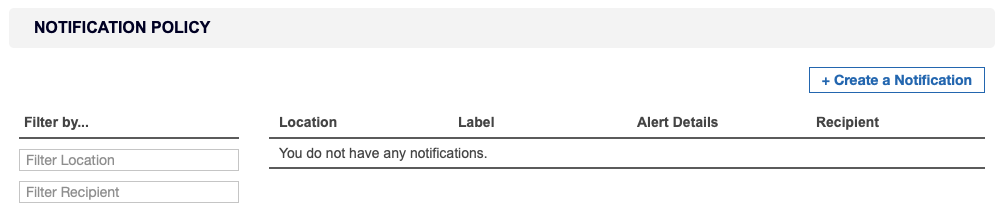
Set up event notifications for system events by going to Settings > Notifications > Notification Policy.
This section covers the following topics:
Set up Notifications and Alerts
Notification policies that are created in the Settings > Notifications > Notification Policy page are global notifications and alerts that apply to all Targets, scans, users, and more.
To set up a global notification policy:
- Log in to the ER2 Web Console.
- Go to Settings > Notifications > Notification Policy.
- On the top-right of the page, click + Create a Notification.
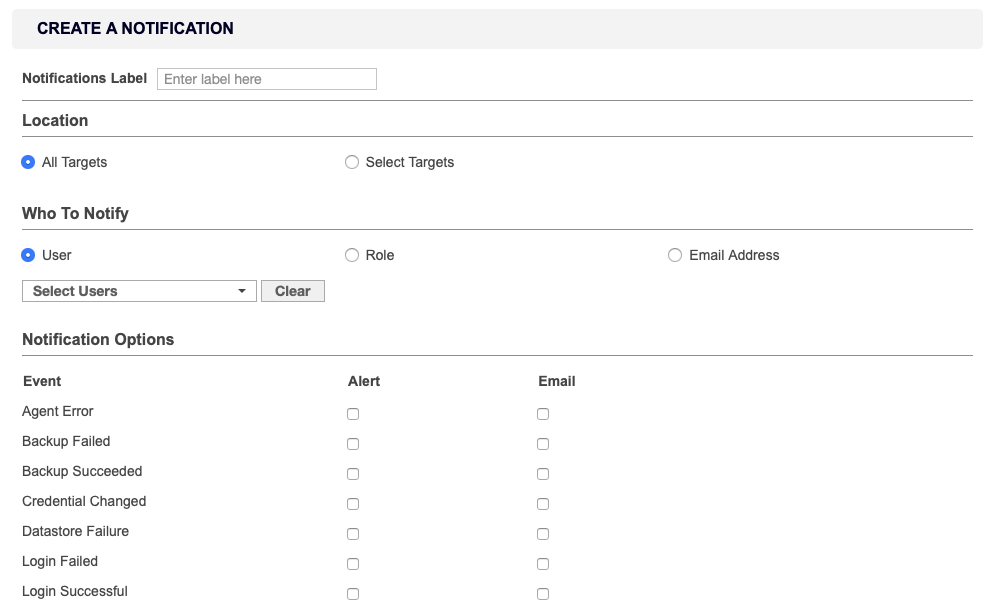
- In Notification Label, enter a label for this set of notifications.
-
In Location, select the targets you want to set up notifications for.
Global Admins can select All Targets to set up a global notification for all Targets. - In the Who To Notify section, select users to send notifications to:
- User: Send an alert or email to selected users.
- Role: Send an alert or email to all users belonging to selected roles. See User Roles.
- Email Address: Send an email to a specific email address.
- In the Notification Options section, select the type of notification a user receives:
- Alert
Notifications
Notifications can be sent to users as:
Alerts
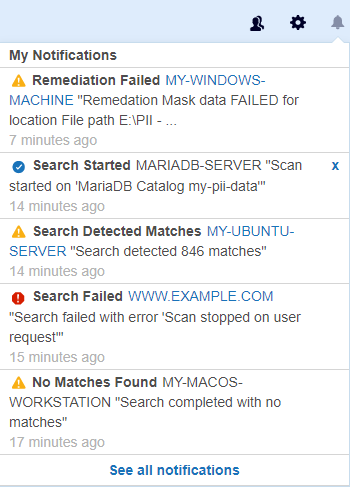
Alerts sent to users are displayed under the notifications icon .
 .
.
Users can view a summary of alerts sent to them on the My Notifications page. To view a summary of alerts:
- Click the notifications icon .
- Click See all notifications.
Or:
- Go to [Username] > My Account.
- Click See My Notifications.
 .
.
Notification alerts are clickable only for the following events: Search Detected Matches, Search Failed, Search Stalled, Remediation Failed and Report Ready For Download.
Emails
Selecting Email under Notification Options has ER2 send email notifications to specified email addresses. The email address does not have to be registered to a user in ER2.
A Message Transfer Agent (MTA) must be set up for email notifications to work. See Mail Settings.
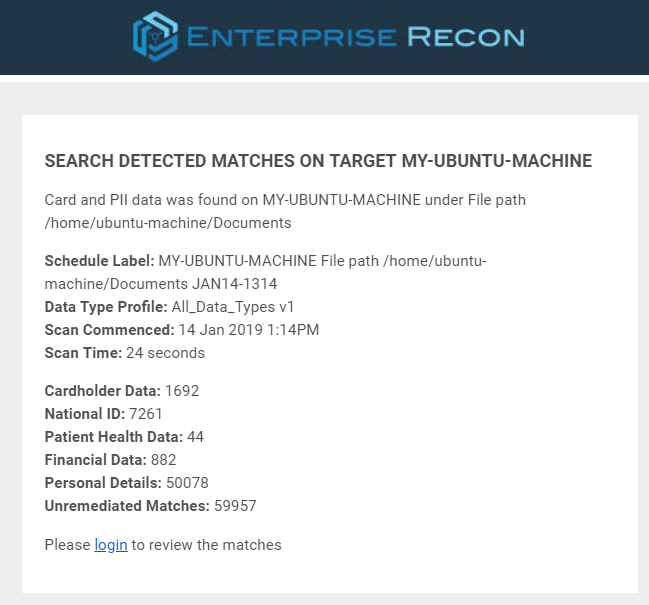
Notification emails contain clickable links only for the following events: Search Detected Matches, Search Failed, Search Stalled, Remediation Failed and Report Ready For Download.
Events
You can configure ER2 to send a global notification or an email alert for the following events:
| Event | Global Admin | Non-Global Admin |
|---|---|---|
| Access Control Completed | ✓ | |
| Access Control Failed | ✓ | |
| Agent Error | ✓ | |
| Backup Failed | ✓ | |
| Backup Succeeded | ✓ | |
| Credential Changed | ✓ | |
| Datastore Failure | ✓ | |
| Login Failed | ✓ | |
| Login Successful | ✓ | |
| No Matches Found | ✓ | |
| Process Failed | ✓ | |
| Remediation Cancelled | ✓ | |
| Remediation Completed | ✓ | |
| Remediation Failed | ✓ | |
| Processing Blocked | ✓ | |
| Role Changed | ✓ | |
| Scan Running | ✓ | ✓ |
| Search Detected Matches | ✓ | ✓ |
| Search Failed | ✓ | ✓ |
| Search Paused | ✓ | ✓ |
| Search Resumed | ✓ | ✓ |
| Search Stalled | ✓ | ✓ |
| Search Started | ✓ | ✓ |
| Target Not Scanned | ✓ | ✓ |
| User Account Changed | ✓ |